The office computer, and joining it
One computer in the office runs Arix for everyone. Everyone else uses that Arix from their own Mac, PC or phone: each with their own sign-in, chats and memory.
In short
- Runs Arix: the AI, the models, everyone's chats and memory.
- Holds the license (Team or Site).
- Where admins manage people, models and settings.
- A Mac, or a PC with Windows 11. It needs to stay on.
- Uses the office's Arix: no AI or models of its own.
- Needs no license.
- Shows that person's own chats and memory.
- A Mac or a PC, at the office or away from it.
The office computer
Pick the computer with the most memory, one that stays on and on the office network: often a Mac mini or a desktop PC in the back office. Arix runs there, so the AI's speed is that computer's speed, and everyone's chats and memory are kept there, not on the computers that join.
It needs a Team or Site license, or the 14-day Team trial. Each person who joins takes a seat on the license.
Set up the office computer
Install Arix on it and set it up as usual, add the license, then turn on office use.
On a Mac: open Settings › Office and turn on Office use.

On a PC: open Settings › Phones and other computers and turn on Let the team use this Arix from their phones and computers. Windows asks for an administrator once, to let the team reach Arix on this PC (on private and work networks only). From then on Arix starts when you sign in to Windows and keeps the PC awake; the screen still turns off.
Join from another Mac or PC
Install Arix on the computer that will join. On the first screen, instead of setting it up:
- On a Mac, choose Join an office. On a PC, click Join your office.
- Arix looks for the office computer on the network by itself. Click Join next to it. Not listed? Make sure you're on the office network, or type the office computer's name instead (an admin sees it in Arix there).
- Type your name and ask to join. Already have an account there? Ask to join first: once your admin approves this computer, you sign in with it.
- Your screen says Waiting for your admin… and shows two words, like cedar-jade. Tell your admin they're there. Requests wait up to ten minutes.


On a phone there's no app to install: open the office's Arix in the phone's browser and use Ask to join. The same approval follows.
Approve on the office computer
An admin sees the request at the top of Arix on the office computer and in Team: the person's name, their computer, and the same two words.
- Check the words match what their screen shows. That way you know it's really them.
- Click Approve. Their computer signs in by itself. (Or Decline.)
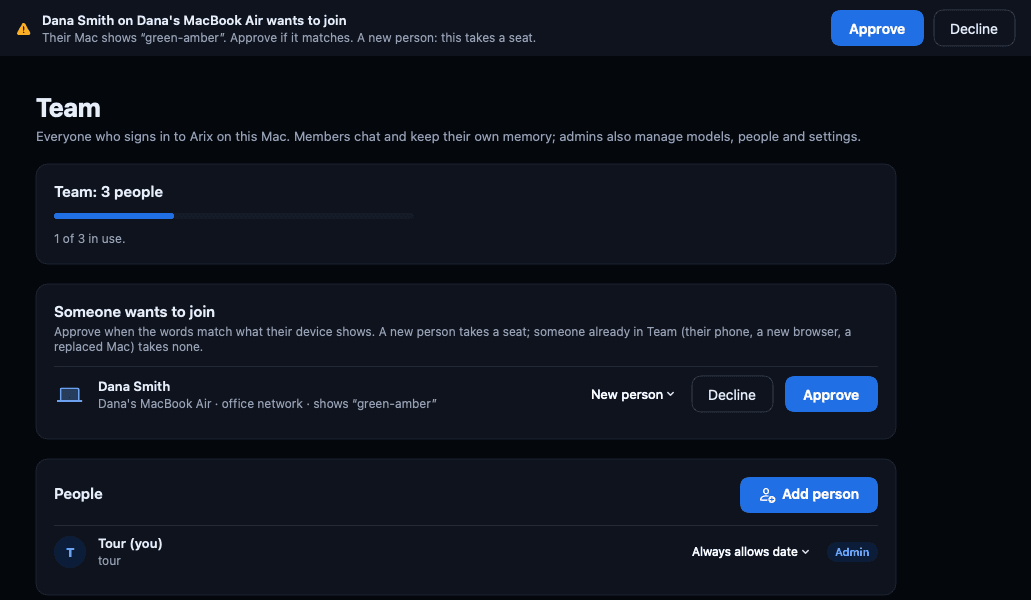
A new person takes a seat. Someone already in Team who joins from another device, like their phone, a new browser or a replaced Mac, takes none.
What each person sees
Everyone gets their own chats and memory. Nobody sees anyone else's, and group chats are there for the whole office.
- On a Mac that joined: Chat, Memory and Settings. This is the same for admins: people, models and office settings are managed on the office computer itself.
- On a PC that joined: Chats, Memory and Settings. Admins also see Models and Team.
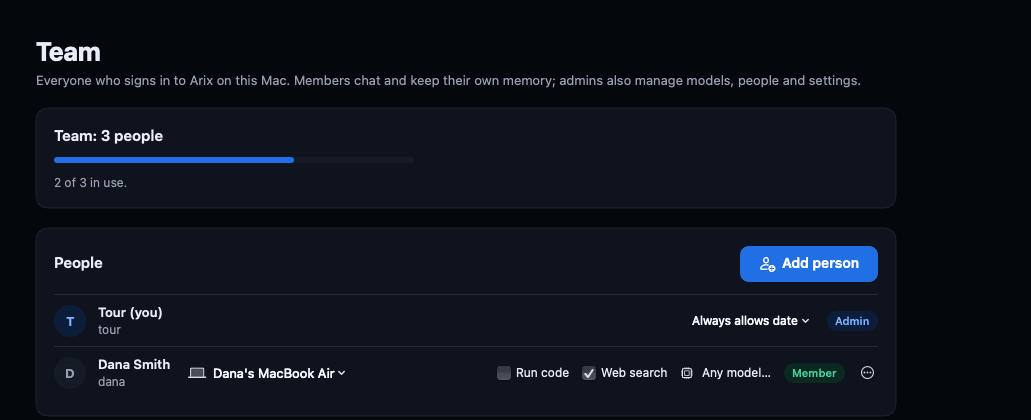
- On the office computer: admins also have Models, Services, Team and Devices. In Team, each person's row shows the computer they joined from, and what they're allowed to do, like running code or searching the web.
Letting the office see a desk computer
Joining lets a person use the office's Arix. Separately, a Mac that joined can let the office look after it: Arix on the office computer then knows how that Mac is doing, like its disks, memory, updates waiting, firewall and disk encryption. Never its files, messages or what you do on it.
- On the Mac that joined, open Settings and click Let the office see this Mac.
- An admin approves it in Devices on the office computer. (If you're an admin, it's set up straight away.)
- Click Set it up and type the Mac's password once. This installs Arix Link, the small program that reports back.

In Devices the Mac shows with the Desk computer profile, the one for any computer a person works at, Mac or PC: health, security checks and printers. To undo it, click Stop in the same place.
Leaving the office
- On a Mac: Settings › Your office › Leave the office. If the office could see this Mac, Arix offers to stop that too.
- On a PC: Settings › Your office's Arix › Stop using it.
Your chats and memory stay on the office computer, and you can join again any time. Can't connect at all? See Can't reach the office computer.